
LED Screen Refresh Rate Explained: Why It Matters and How to Set It
What LED screen refresh rate actually means, why it's different from TV refresh rate, how to set it correctly in NovaLCT, what causes camera banding and flicker, and the right settings for broadcast, events, and photography.
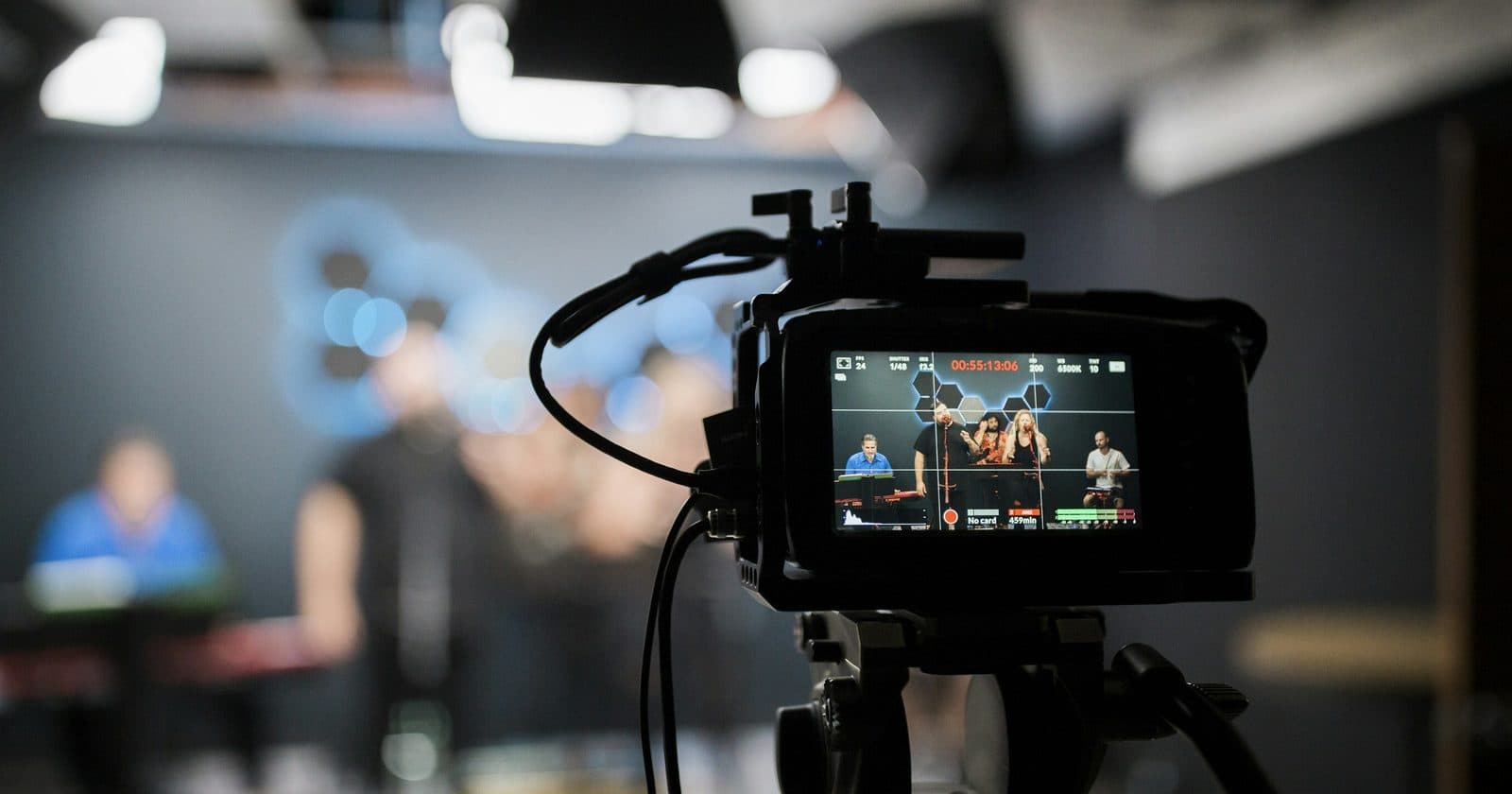
Refresh rate is one of the most misunderstood settings on LED screens, partly because it means something very different on LED screens than it does on a television. Get it wrong and you'll see banding in camera footage, a subtle flicker in the room, or problems when photographing the screen. Get it right and the screen is effectively invisible to cameras and comfortable for all viewers. This guide explains exactly what LED screen refresh rate is and how to set it correctly.
What LED Screen Refresh Rate Actually Means
On a TV or monitor, refresh rate (Hz) describes how many times per second the screen updates its image: 60 Hz means the image refreshes 60 times per second. Higher refresh rates produce smoother motion.
On an LED screen, refresh rate means something different. LED screen refresh rate (also called scan frequency or PWM frequency) describes how many times per second the LEDs complete a full on-off PWM cycle to control their brightness. This is not about how fast the image updates, it's about how the LEDs are dimmed.
LEDs are either on or off. To produce intermediate brightness levels, they're switched on and off extremely rapidly, at the refresh rate. At 1,920 Hz, the LEDs switch on/off 1,920 times per second. At 3,840 Hz, they switch 3,840 times per second. The human eye can't perceive individual cycles above about 60–80 Hz, so at 1,920 Hz the screen appears to have a steady brightness.
Why Refresh Rate Matters for Cameras
Cameras are the critical audience for LED screen refresh rate. A camera's image sensor captures light over a finite exposure time (the shutter speed). If the LED screen is completing PWM cycles that are out of sync with the camera's exposure period, the sensor captures the screen at different phases of the on/off cycle, resulting in visible dark bands across the image.
This is exactly what causes the rolling dark bars seen in phone and camera photos of LED screens. The bars scroll through the image at a rate determined by the difference between the camera's frame rate and the LED screen's refresh rate.
| LED Refresh Rate | Camera Frame Rate | Result |
|---|---|---|
| 960 Hz | 25/30 fps | Severe banding: 960 is far too low for any camera use |
| 1,920 Hz | 25/30 fps | Mild banding visible in still photos and video |
| 3,840 Hz | 25/30/60 fps | No visible banding: minimum for event screens that will be photographed |
| 7,680 Hz | 25/30/60/120 fps | No banding at any standard frame rate, recommended for broadcast |
| 15,360 Hz+ | Any frame rate | No banding at any camera speed: used for broadcast studio screens |
How to Set Refresh Rate in NovaLCT
- In NovaLCT, go to Screen Configuration → Advanced Settings (the exact location varies slightly by NovaLCT version)
- Find the "Refresh Rate" or "Scan Frequency" parameter
- Set to 3,840 Hz as the default for event screens that may be photographed
- Set to 7,680 Hz or higher for broadcast or IMAG applications
- Click Apply/Send to Hardware to push the change to all receiving cards
- Test with your camera: set a fast shutter speed (1/1000s or faster) and photograph a uniformly lit white screen: no dark bands should be visible at 3,840 Hz
The Relationship Between Refresh Rate and Greyscale Depth
There is a trade-off between refresh rate and greyscale depth: the two compete for the available PWM time budget per frame. At very high refresh rates, the receiving card has less time per cycle to implement fine brightness gradations, which can reduce effective greyscale depth at the lowest brightness levels.
In practice, this trade-off is only noticeable at the extreme ends of both settings. A screen running at 3,840 Hz with 16-bit greyscale depth will not show any visible greyscale reduction in real-world content. The trade-off only becomes significant above 7,680 Hz combined with content that has very dark subtle gradients.
For most applications, set refresh rate to 3,840 Hz and leave greyscale at 16-bit. Only compromise one for the other if you have a specific technical requirement (e.g., a broadcast application that needs the absolute minimum banding risk and will not show dark shadow details).
Human Flicker Sensitivity
While cameras require refresh rates of 3,840 Hz or higher, human eyes are far less sensitive to LED flicker. Most people cannot consciously detect flicker above 60–80 Hz. However, research into subconscious flicker sensitivity (particularly related to eye fatigue and headaches) suggests that flicker below 400–600 Hz may cause discomfort in sensitive individuals after prolonged viewing, even if not consciously perceived.
This is relevant for permanent installations, broadcast studios, and control rooms where people are viewing the screen for extended periods. For these applications, 3,840 Hz should be considered the minimum for human comfort as well as camera compatibility.
For short-duration events where flicker-related fatigue is not a concern, 1,920 Hz is technically sufficient for human viewing, but 3,840 Hz should still be used to handle the inevitable phone cameras in the audience.
Diagnosing Refresh Rate Problems
| Symptom | Cause | Fix |
|---|---|---|
| Dark bands visible in photos/video | Refresh rate too low: camera capturing PWM cycles | Set refresh rate to 3,840 Hz or higher in NovaLCT |
| Bands visible to naked eye in the room | Refresh rate below ~60 Hz: essentially impossible on modern hardware but can occur after firmware corruption | Reload configuration; check for receiving card errors |
| Bands visible only at certain shutter speeds | Normal PWM behaviour at current refresh rate, not a fault | If shooting at high frame rates, increase refresh rate to 7,680 Hz |
| Screen flickers during fast camera pans | Rolling shutter + PWM interaction | Increase refresh rate; also ensure camera's electronic shutter mode is set correctly |
| Bands appear on some cabinets but not others | Different receiving card models with different refresh rate capabilities | Check receiving card models: older cards may have lower maximum refresh rates |
Recommended Refresh Rate Settings by Application
| Application | Recommended Refresh Rate | Notes |
|---|---|---|
| Indoor events (general) | 3,840 Hz | Handles phone cameras and DSLR photography |
| Concert/festival IMAG | 3,840–7,680 Hz | Broadcast cameras need higher rate; 7,680 Hz recommended |
| Broadcast studio | 7,680–15,360 Hz | Professional cameras at high frame rates require maximum rate |
| Retail / digital signage | 1,920–3,840 Hz | No cameras: 1,920 Hz acceptable; 3,840 Hz if customers photograph |
| Sports venue scoreboard | 3,840 Hz | TV broadcast cameras present: must be 3,840 Hz minimum |
| Outdoor billboard (no camera use) | 960–1,920 Hz | No performance benefit above 1,920 Hz if no cameras involved |
Advanced NovaLCT Settings in the Full Guide
Chapter 9 of the full guide covers every NovaLCT advanced setting, refresh rate, greyscale depth, colour temperature, low-latency mode, and HDR configuration, with recommended values for every application type.
Get the Full Guide for £35 →