
Novastar Sending Cards & Controllers: Which One Do You Need?
Confused about which Novastar controller to buy? This guide explains the difference between sending cards and sending boxes, covers the MCTRL and VX product lines, and helps you choose the right device for your screen size.
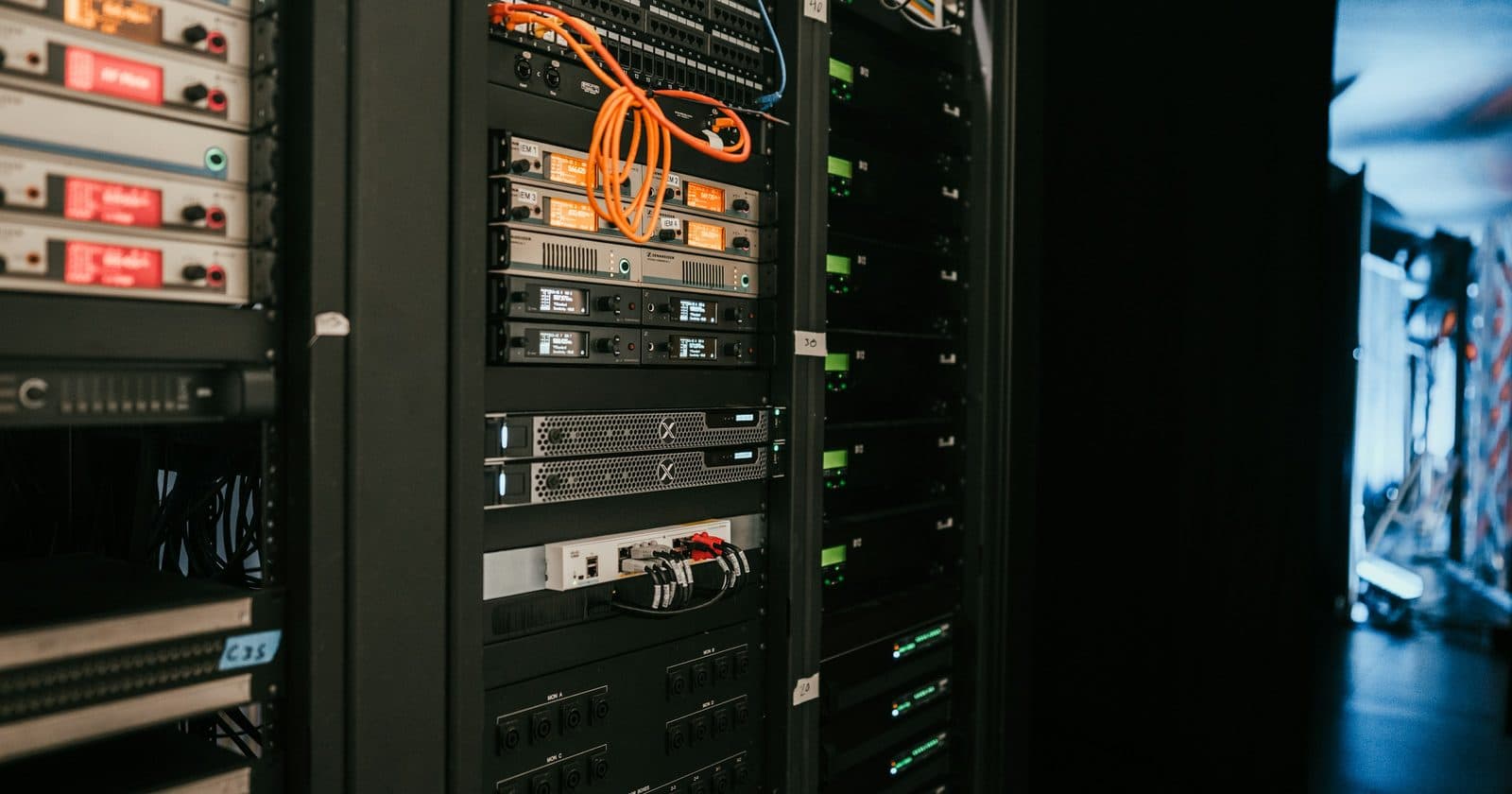
The Novastar sending device is the brain of your LED screen setup; it takes video from your PC and converts it into the high-speed data stream that tells every LED what colour to be. But Novastar makes many different sending devices, each suited to different screen sizes and applications. This guide cuts through the confusion and tells you exactly which device is right for your setup.
What Does a Sending Device Do?
Your PC's graphics card outputs video via HDMI or DisplayPort, a format designed for monitors. Your LED screen doesn't understand this format. The sending device sits between the two:
- Receives video from your PC via HDMI, DisplayPort, or DVI
- Converts that video into LED screen data format at extremely high speed
- Outputs the data via standard Ethernet (Cat6) cables to the LED cabinets
- Communicates with NovaLCT software on your PC for configuration and monitoring
Think of the sending device as a translator: it speaks "PC graphics card" on one side and "LED screen" on the other. Without it, the two cannot communicate.
Sending Card vs Sending Box: What's the Difference?
Sending Card (PCIe)
A Novastar sending card is a PCIe expansion card that fits inside a desktop PC. It slots into a PCIe ×4 or ×16 slot and connects to the PC's graphics card via a DVI or HDMI cable internally. The LED output ports are at the back of the card, accessible from the rear of the PC case.
Sending cards are most common in fixed installations (permanent corporate displays, broadcast studios, control rooms) where the PC is a permanent tower system and the screen is fixed in place.
- Pro: Very stable, no external device to power or manage
- Pro: Generally lower cost than equivalent sending box
- Con: Requires a desktop PC; will not work with laptops or mini-PCs
- Con: Installation requires opening the PC case
- Con: Less portable; not suitable for touring rental applications
Sending Box (External)
A Novastar sending box is a standalone unit, typically rack-mountable, that sits outside the PC. It connects to your PC via HDMI or DisplayPort on the input side, and outputs to the LED screen via Cat6 on the output side. It has its own power supply and connects to NovaLCT via USB or Ethernet.
Sending boxes are the dominant choice for event rental, touring productions, and any application where portability or laptop compatibility matters.
- Pro: Works with any computer: laptop, mini-PC, Mac (via adapter)
- Pro: Portable; packs into a flight case easily
- Pro: Stackable and rack-mountable for large productions
- Con: Requires its own power and rack/stand space
- Con: One more cable between PC and sending device
The MCTRL Product Line (Sending Boxes)
MCTRL300
The entry-level Novastar sending box. One output port with a maximum capacity of 1.3 million pixels. Ideal for small fixed installations: a single retail display, a small conference room screen, or a compact rental setup. Very compact and affordable.
Choose the MCTRL300 if: your screen is under 1.3 million pixels total, you need a simple single-screen setup, and portability is not a priority.
MCTRL660
The most popular Novastar sending box in the rental market. Two output ports, each handling up to 2.3 million pixels (4.6M total across both ports). Handles the vast majority of event screens, from small conference screens to mid-size concert stage screens.
A 6-wide × 4-tall screen at P4 (256×256 pixels per cabinet) has approximately 1.57 million total pixels, comfortably within one MCTRL660 output. A larger 8×6 screen at the same spec has about 3.1 million pixels, requiring both outputs.
Choose the MCTRL660 if: you're in the event rental market, your screen is under 4.6 million pixels, and you want the most widely supported, best-documented device in the industry.
MCTRL R5
The flagship MCTRL unit. Four output ports with a total capacity of up to 10 million pixels. Supports HDR10 content. Designed for large-scale productions where a single box needs to drive a very large screen or multiple screens simultaneously.
Choose the MCTRL R5 if: your screen exceeds 4.6 million pixels, you need HDR support, or you need a single device to manage a multi-screen setup.
The VX Series (All-in-One Controllers)
The VX series represents a different philosophy from the MCTRL line. Where MCTRL boxes are pure sending devices (they take one video input and output it to the LED screen), VX units are all-in-one controllers that combine video processing, input switching, and LED control in a single device.
Connect multiple sources (laptop, camera, media player, HDMI switcher) to the VX inputs, and use the front panel controls or NovaLCT to switch and scale between them. This eliminates the need for a separate video switcher and makes VX units particularly popular for events where content source switching happens frequently.
| Model | Max Pixels/Output | Outputs | Key Advantage |
|---|---|---|---|
| VX400 | 2.3 million | 2 | Compact all-in-one, ideal for events up to 4.6M pixels |
| VX600 | 3.9 million | 3 | Larger event productions, more inputs available |
| VX1000 | 6.5 million | 6 | Top-tier productions, large multi-screen setups |
VX Series Advantages for Events
- Built-in input switching: no separate A/V switcher required
- Screen configuration persists without a PC: once configured, the screen runs independently
- Front panel controls for input selection, brightness, and basic setup without a laptop
- More compact overall signal chain: fewer boxes in the rack
- Supports genlock for broadcast applications (VX1000)
How to Calculate Which Device You Need
- Find your cabinet's pixel dimensions from the datasheet (e.g., 256 pixels wide × 256 pixels tall)
- Count how many cabinets wide and tall your screen is (e.g., 8 wide × 6 tall)
- Calculate total pixels: (256 × 8) × (256 × 6) = 2,048 × 1,536 = 3,145,728 pixels (about 3.1 million)
- Divide by pixels per output: 3.1M ÷ 2.3M = 1.35 → need 2 outputs minimum
- Choose a device with at least 2 outputs: MCTRL660, VX400, or larger
Quick Selection Guide
| Your Situation | Recommended Device |
|---|---|
| Small fixed install, under 1.3M pixels, single source | MCTRL300 |
| Event rental, single or dual screen, under 4.6M pixels | MCTRL660 |
| Event rental with frequent source switching, under 4.6M pixels | VX400 |
| Large event screen, under 12M pixels, multiple sources | VX600 or VX1000 |
| Very large screen or multi-screen, over 10M pixels | MCTRL R5 or multiple VX1000s |
| Fixed install in a desktop PC (permanent) | Nova MCTRL Series PCIe card |
Full Novastar Hardware Reference in the Complete Guide
Chapter 8 of the full guide covers every aspect of Novastar hardware setup, connecting sending devices, running data cables, fibre optic extension for long runs, and verifying your hardware connection in NovaLCT.
Get the Full Guide for £35 →