
Novastar Receiving Cards: What They Are and How to Set Them Up
Every LED cabinet contains a Novastar receiving card. This guide explains what receiving cards do, how they connect to your sending device, which models are common, and how to configure them in NovaLCT.
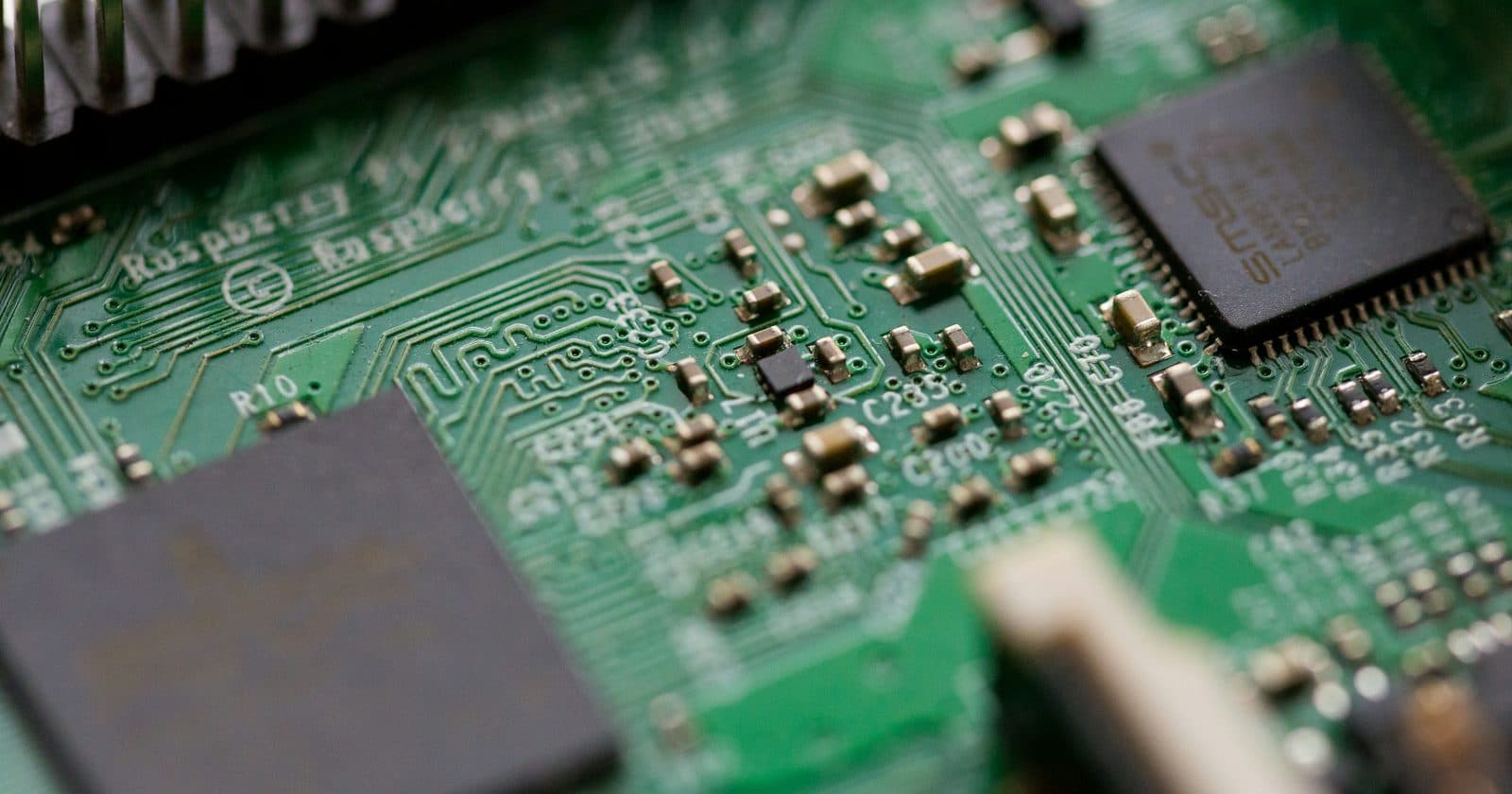
Every LED cabinet in your screen contains at least one receiving card, a small PCB that sits inside the cabinet and drives the LEDs directly. Understanding what receiving cards do, how they communicate with your Novastar sending device, and how to manage them in NovaLCT is fundamental to diagnosing problems and configuring screens correctly.
What Is a Receiving Card?
A receiving card (also called a receiving module or drive board) is an embedded circuit board mounted inside each LED cabinet. It receives the high-speed data stream from your Novastar sending device via Cat6 Ethernet cable, decodes it, and translates it into PWM (pulse width modulation) signals that control the brightness of each individual LED in the cabinet.
Think of the receiving card as the "last mile" of the LED signal chain. The sending device handles the big picture, taking video from your PC and converting it, and the receiving card handles the detail work: telling each of the thousands of LEDs in that specific cabinet exactly what to do at exactly the right moment.
A standard LED cabinet has one receiving card. Very large cabinets may have two. The receiving card is almost always a Novastar-branded card when the rest of the system is Novastar; mixing brands at this level is possible but strongly discouraged, as it creates compatibility and configuration problems.
How Receiving Cards Fit in the Signal Chain
- PC → Novastar sending device (MCTRL, VX series) via HDMI/DisplayPort
- Sending device → first cabinet's receiving card IN port via Cat6 Ethernet
- First cabinet receiving card OUT port → second cabinet IN port (daisy chain)
- Chain continues until last cabinet: its OUT port is left unconnected
- Sending device also communicates with receiving cards via this same data chain for configuration and monitoring
Common Novastar Receiving Card Models
| Model | Max Pixels per Card | Key Features | Typical Use |
|---|---|---|---|
| A8s | 512,000 | Most common rental card, excellent NovaLCT compatibility, supports calibration | Standard events rental cabinets: P3 to P4 |
| MRV300 | 300,000 | Entry-level, compact, widely used in fixed-install panels | Small to medium fixed displays |
| MRV420 | 420,000 | Higher capacity, HDR support, ColourBrightness calibration | Premium rental and fixed install |
| MRV660 | 655,000 | High-end receiving card, 16-bit greyscale, low latency | Broadcast, broadcast studio, control rooms |
| A5s | 650,000 | Newer generation, supports more advanced calibration | Modern rental cabinets, touring |
| MRVB series | Variable | Budget range for fixed install, less calibration depth | Budget fixed install, retail displays |
What Receiving Cards Manage
Each receiving card controls specific parameters for its cabinet:
- LED data output: translating incoming video data into per-pixel PWM signals at up to 3,840 Hz or higher
- Cabinet position within the screen: which area of the overall image this cabinet displays
- Greyscale depth: 16-bit processing means 65,536 brightness levels per colour channel for smooth gradients
- Calibration data: storing per-module or per-pixel colour and brightness calibration coefficients
- Temperature monitoring: many cards have built-in temperature sensors that report to NovaLCT
- Firmware: each card stores its own firmware that can be updated via NovaLCT
How NovaLCT Interacts with Receiving Cards
When you connect NovaLCT to your screen system, one of the first things it does is enumerate all receiving cards on the chain. The hardware connection view shows you exactly how many cards have been detected on each output port of your sending device.
This count is one of your most valuable diagnostic tools. If you have 24 cabinets but NovaLCT shows only 20 receiving cards on Output 1, cabinet 21's receiving card is the first one not receiving data, so the cable going INTO cabinet 21 is almost certainly the problem.
Beyond counting, NovaLCT uses the receiving card connection to:
- Send configuration data: cabinet position, module layout, pixel mapping
- Push firmware updates to all cards simultaneously
- Read live temperature, voltage, and fan speed data
- Apply and store calibration coefficients (colour and brightness balancing)
- Save the screen configuration to the receiving cards directly (so the screen can run without a PC)
Saving Configuration to Receiving Cards
One of Novastar's most practical features for events is the ability to save your entire screen configuration directly to the receiving cards. Once saved, the screen will power up to the correct configuration without a connected PC or sending device in "standalone" mode.
This is particularly useful for VX series controllers, which can run completely standalone once configured. But even with MCTRL sending boxes, saving the configuration to the receiving cards means the screen will come up correctly after a power cycle, without the operator needing to re-push the configuration from NovaLCT.
Receiving Card Failure: What to Look For
Receiving card failures are rarer than cable problems but do occur, especially in older systems or where cabinets have been dropped. Signs of receiving card failure:
| Symptom | Likely Cause | Action |
|---|---|---|
| Cabinet is completely dark despite correct cabling | Receiving card has failed, no power or dead card | Swap in a known-good receiving card; check cabinet power supply first |
| Cabinet shows image but colours are severely wrong (one colour missing entirely) | Receiving card output fault on one colour channel | Receiving card replacement: not a calibration issue |
| Cabinet detected by NovaLCT but shows wrong section of image | Receiving card configuration lost: card has reset | Re-push configuration from NovaLCT to this specific card |
| NovaLCT shows receiving card but with errors in the status panel | Firmware mismatch or partial card failure | Update firmware via NovaLCT; if persists, replace card |
| Cabinet flickers randomly despite good cables | Intermittent receiving card fault (power circuit) | Replace the receiving card; check cabinet PSU voltage |
Firmware Updates: When and How
Novastar periodically releases firmware updates for receiving cards that improve stability, add features, or fix compatibility issues with newer NovaLCT versions. You should update receiving card firmware when:
- NovaLCT warns of a firmware mismatch between the sending device and receiving cards
- You're experiencing unexplained stability issues that cables and power have ruled out
- You've updated NovaLCT to a new major version and updated the sending device firmware
- A specific bug fix is listed in Novastar's release notes that matches a problem you're experiencing
Deep Dive: Novastar Hardware in the Complete Guide
Chapters 2 and 8 of the full guide cover the complete Novastar hardware ecosystem, sending devices, receiving cards, data cabling, and how to read NovaLCT's hardware diagnostics to solve problems quickly.
Get the Full Guide for £35 →